Install guide · Android TV
Install eKoPlayer on Android TV and NVIDIA Shield
eKoPlayer is a media player for the playlist you already have. On an NVIDIA Shield, or any Android TV with the Google Play Store on it, it installs from Google Play in about two minutes.
Step by step
-
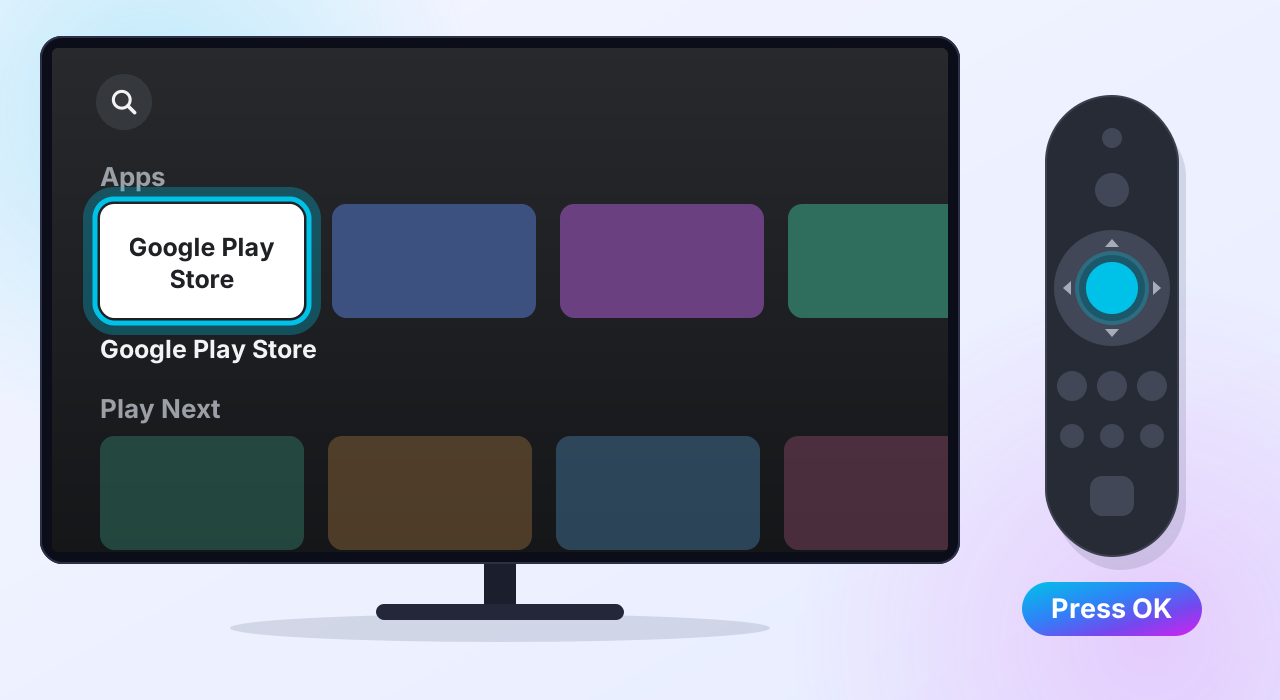
Open the Google Play Store
On the Home screen, find Google Play Store in the Apps row and open it.
-
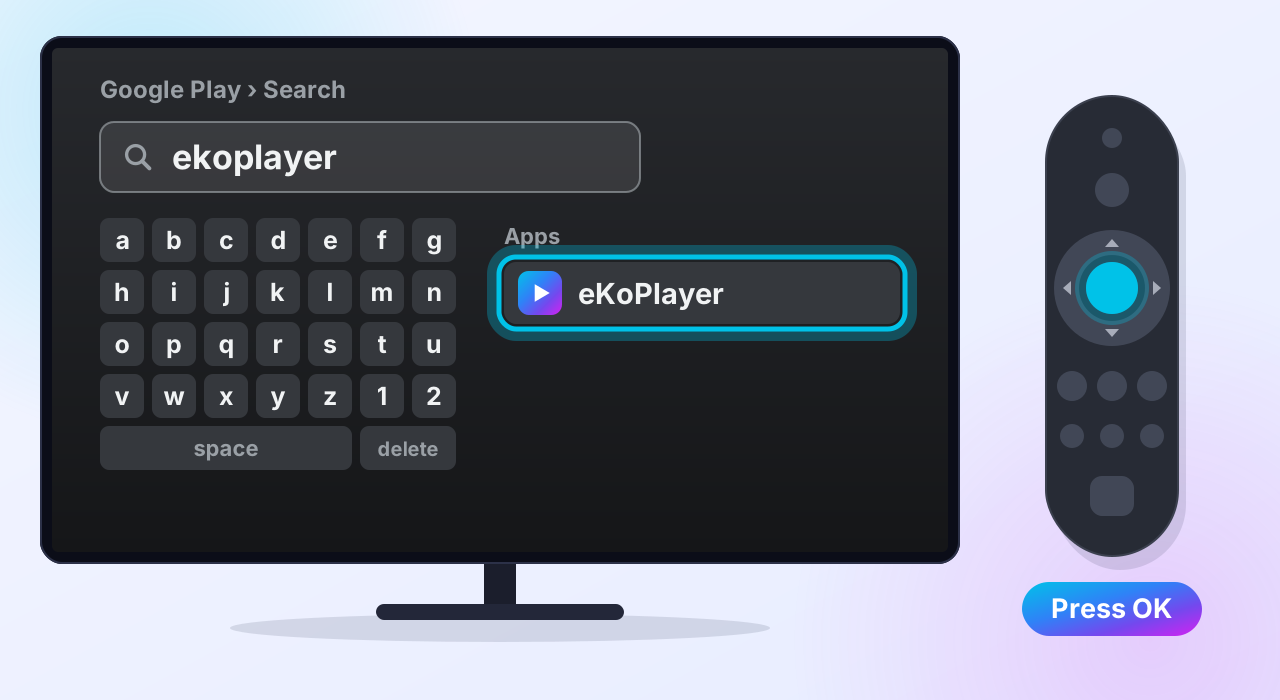
Search for eKoPlayer
Select the magnifying glass at the top and type ekoplayer — or press the microphone button on the remote and say it. Pick eKoPlayer.
-
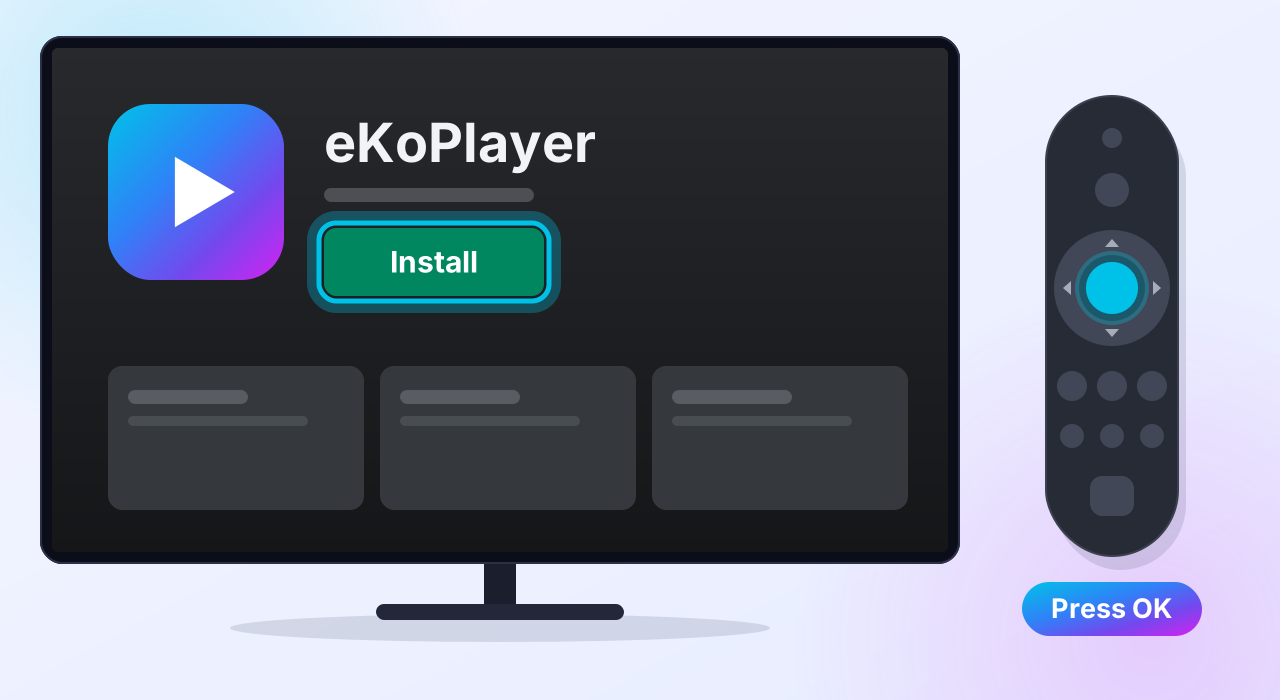
Install
On eKoPlayer's page, select Install. It is free to download.
-
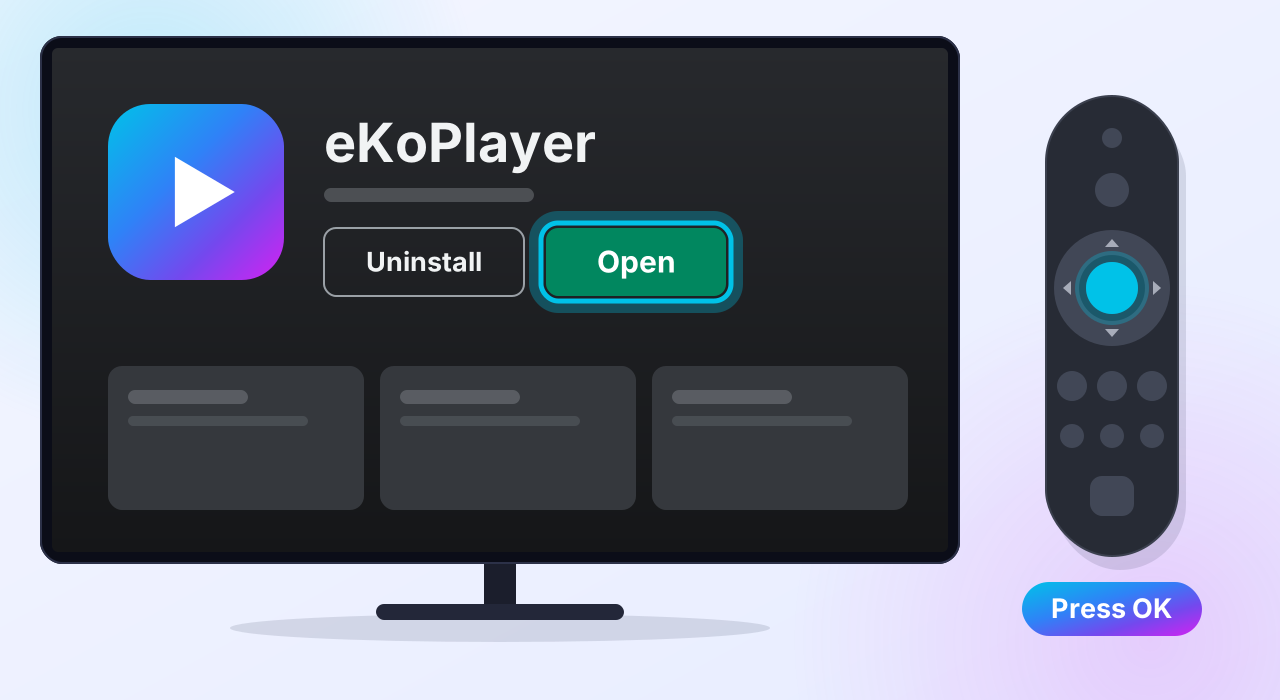
Open it
When it finishes, select Open. It is also in your Apps row from now on.
-
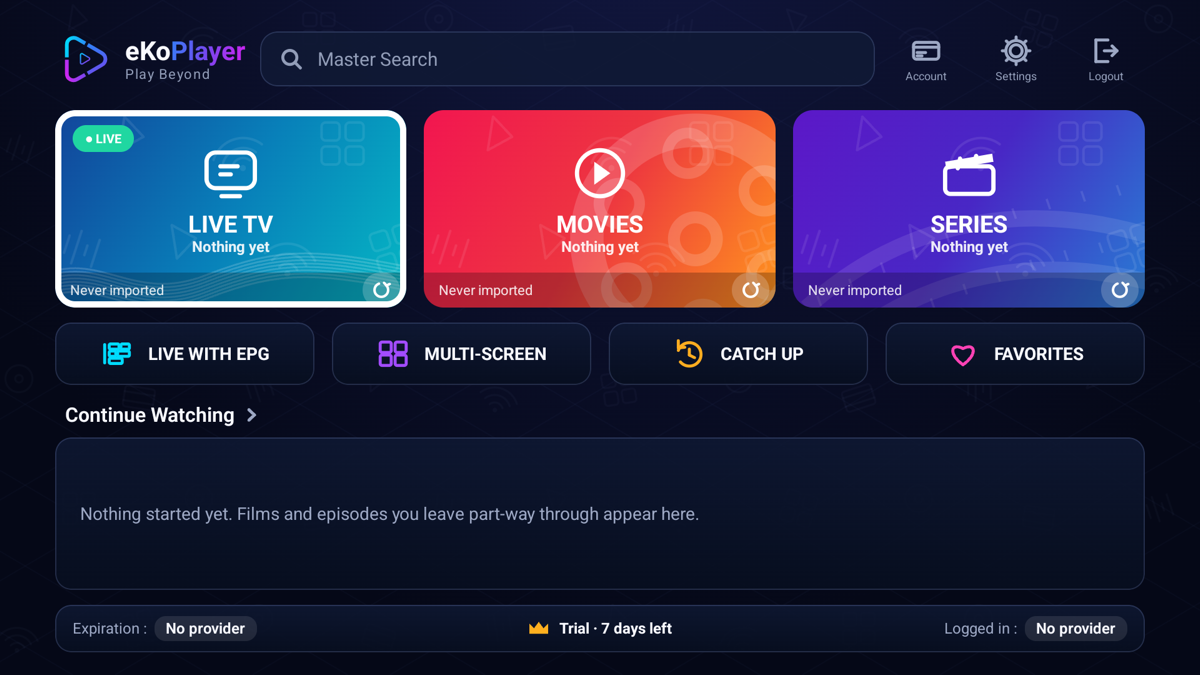
You are in
This is eKoPlayer's first screen, and it is empty on purpose: the app comes with no channels and no films. Your free seven-day trial has started — you can see it along the bottom.
Next: add your playlist
Point eKoPlayer at the source you already have — an M3U address or your Xtream login. The setup guides walk through both.
When the trial ends
This is the Google Play version, so it activates inside the app, through Google Play. Nothing on this website applies to it.
Or install from your phone
Open eKoPlayer on Google Play on your phone or computer, signed in with the same Google account as the TV. Choose Install and pick your TV.
If something goes wrong
eKoPlayer does not come up in the search
eKoPlayer needs Android 7.0 or newer. Open the Google Play link above on your phone: it says whether your TV can install it.
My box has no Google Play
Use the version we publish ourselves instead. The download page has the file, and the Fire TV steps show how Downloader installs it.
Something else
Support answers the common problems, and reaches a person.
Please read
This app does not provide or include any media content. Users must add their own content from authorized sources. This app has no affiliation with any third-party provider. This app is intended solely for streaming media the user has legal access to.